Role-Based Access Control (RBAC)
ClickStack includes role-based access control (RBAC) so you can define custom roles with fine-grained permissions over dashboards, saved searches, sources, alerts, webhooks, and notebooks. You assign each team member a role that determines what they can view and manage in the ClickStack UI.
RBAC is available in Managed ClickStack deployments. For ClickStack Open Source, access control is managed at the infrastructure level.
Overview
ClickStack RBAC operates at two levels:
- Resource-level permissions — control whether a role can access specific resource types, and at what level (no access, read, or manage).
- Fine-grained access rules — optionally restrict access to individual resources within a category based on conditions like name or tag.
ClickStack ships with three built-in system roles, and you can create custom roles to match your team's access requirements.
Built-in roles
ClickStack includes three system roles. You can't edit or delete these.
| Role | Description |
|---|---|
| Admin | Full access to all resources. Assigned to the team creator by default. |
| Member | Read and write access to most resources. |
| ReadOnly | Read-only access to all resources. |
Creating a custom role
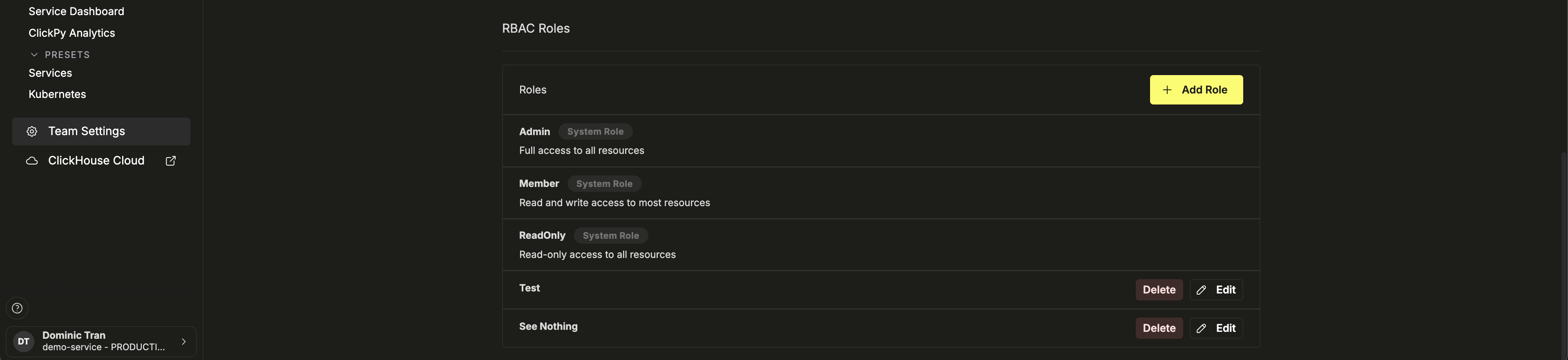
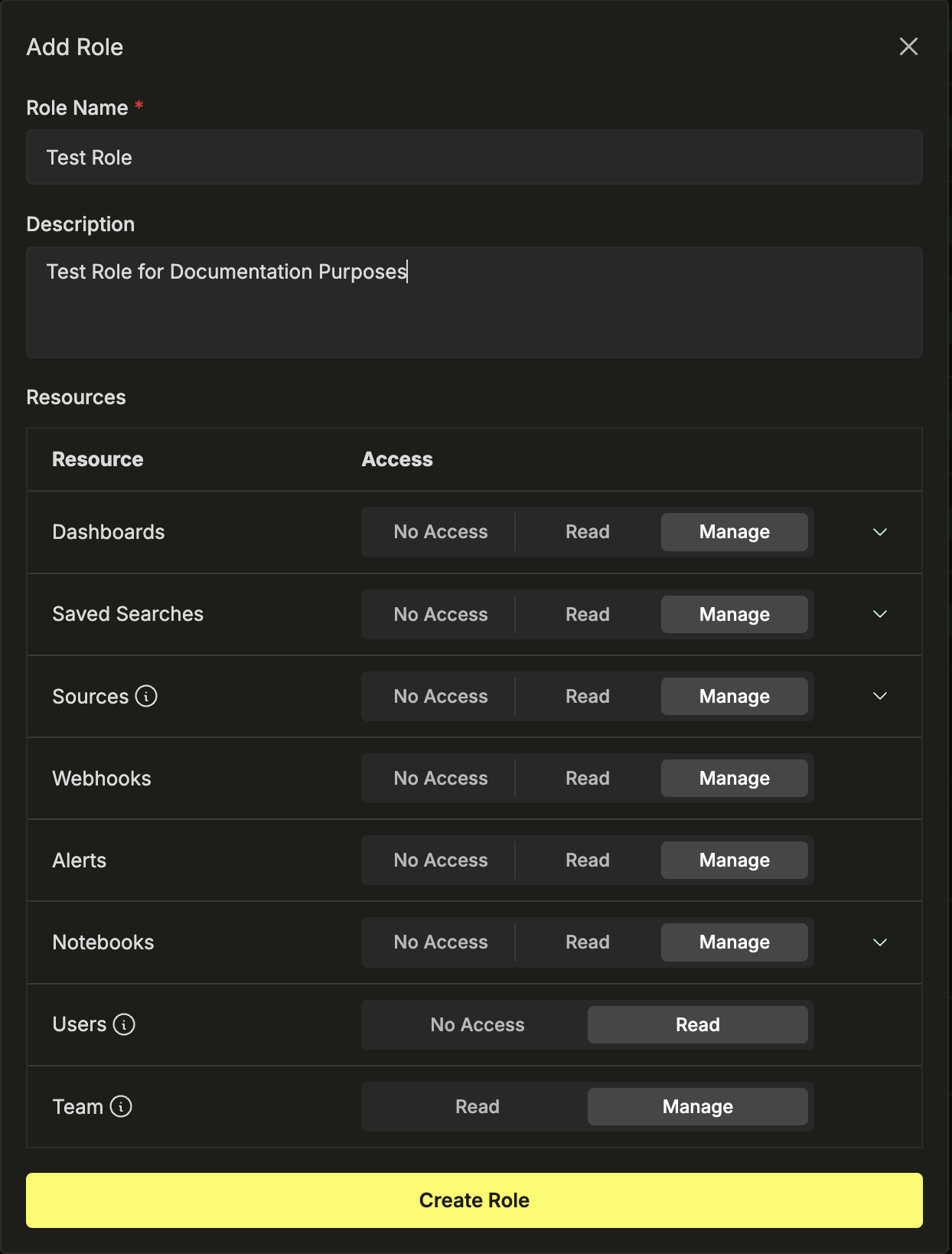
Custom roles appear alongside system roles in the RBAC Roles section, with Edit and Delete controls.
Administrative permissions
In addition to resource permissions, each role includes two administrative settings:
- Users (No Access · Limited Access) — controls whether the role can view team members and their roles. Only Admins can invite, remove, or update users.
- Team (Read · Manage) — controls whether the role can view or manage team-level settings. A role must have at minimum read access to a team to access it.
Fine-grained access rules
Dashboards, Saved Searches, Sources, and Notebooks support fine-grained controls for restricting access to specific resources within that category.
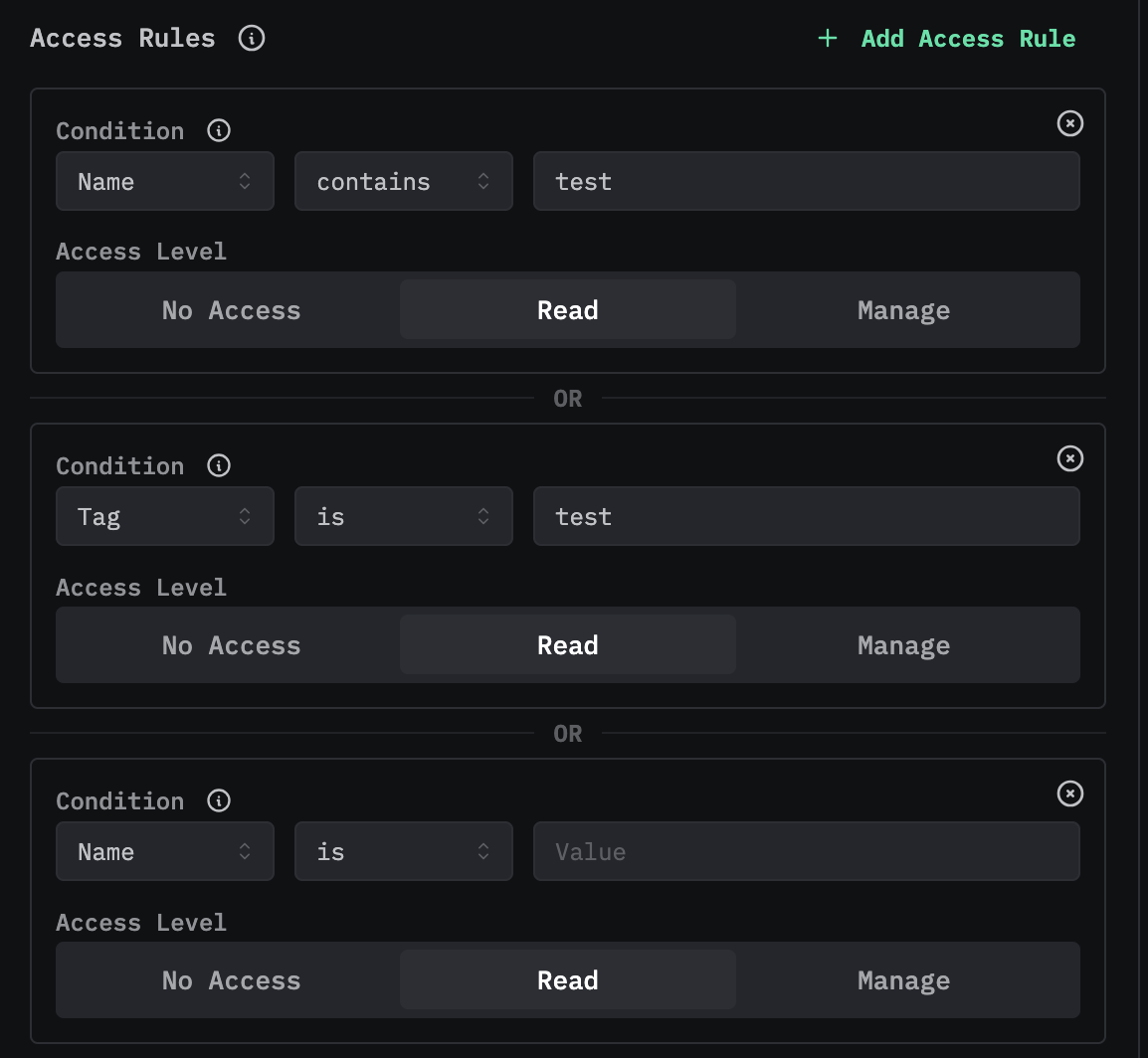
To configure fine-grained rules, click the chevron to expand a resource, then switch the Access Control Mode from Default Access to Fine-Grained Controls.
Each access rule consists of a condition and an access level. Conditions filter resources by properties such as name or tag:
| Condition field | Operators | Example |
|---|---|---|
| Name | is, contains | Name contains production |
| ID | is, contains | ID is abc123 |
| Tag | is, contains | Tag is critical |
You can add multiple rules per resource. Rules combine with OR logic — a resource is accessible if it matches any rule. Resources that don't match any rule are denied access by default.
Assigning roles to team members
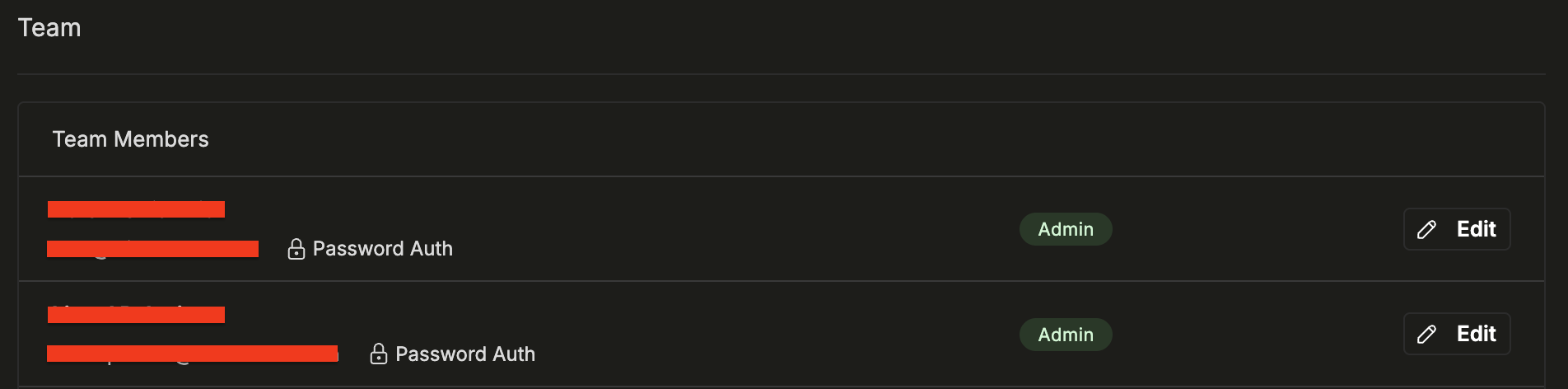
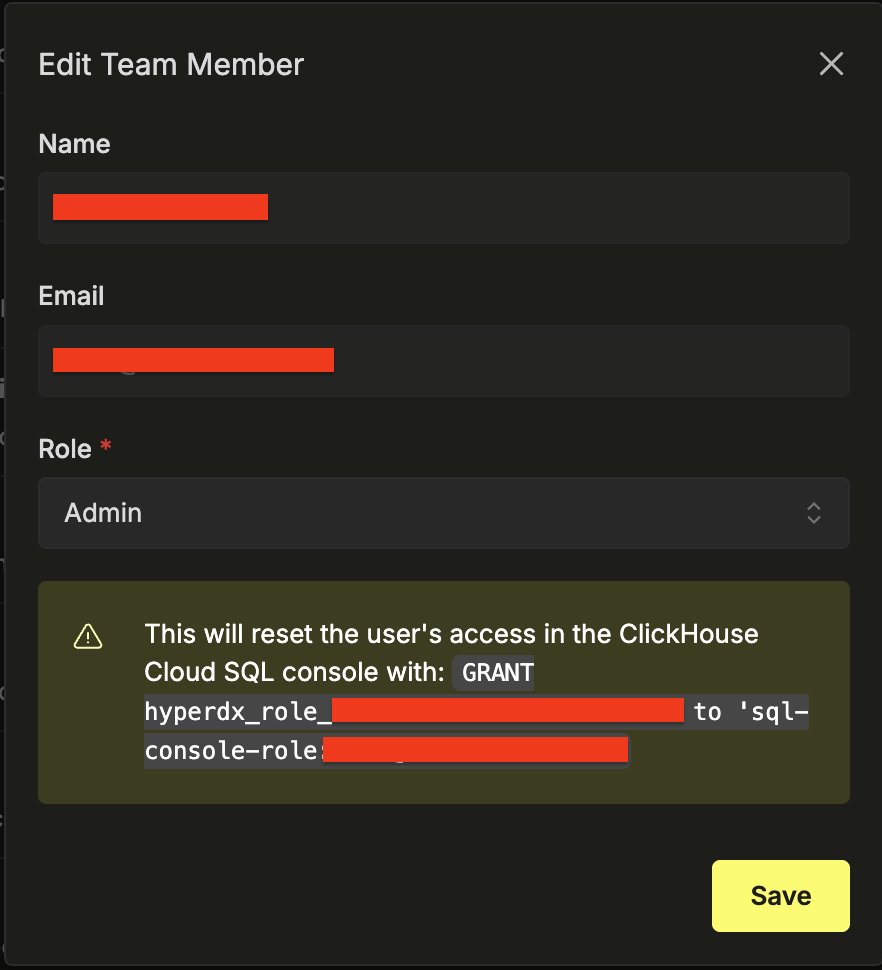
The Team Settings page lists all team members with their current role. To change a user's role, click Edit next to their name and select a new role. Each user has exactly one role.
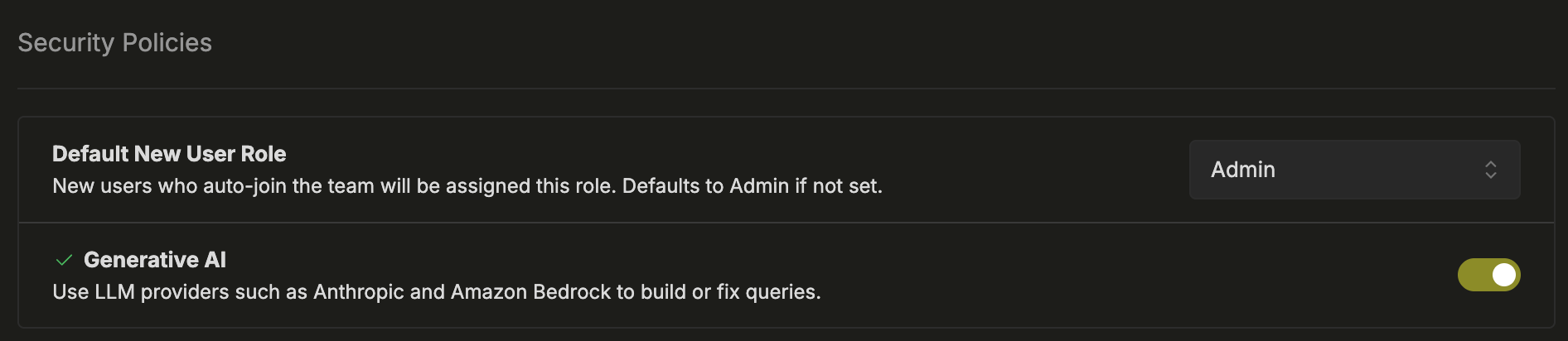
Default new user role
You can set a default role for new users under Security policies. New users who auto-join the team are automatically assigned this role.
When a new member joins the team, their SQL console permissions in ClickHouse Cloud are reassigned to match the ClickStack role.
Security policies
The Security Policies section in Team Settings provides additional controls.
Default New User Role sets the role automatically assigned to new users who join the team.
Generative AI lets you enable or disable LLM-powered features like natural language query generation using Anthropic or Amazon Bedrock. When disabled, no data is sent to AI providers.